
- The labels above the title tell you the status and the type.
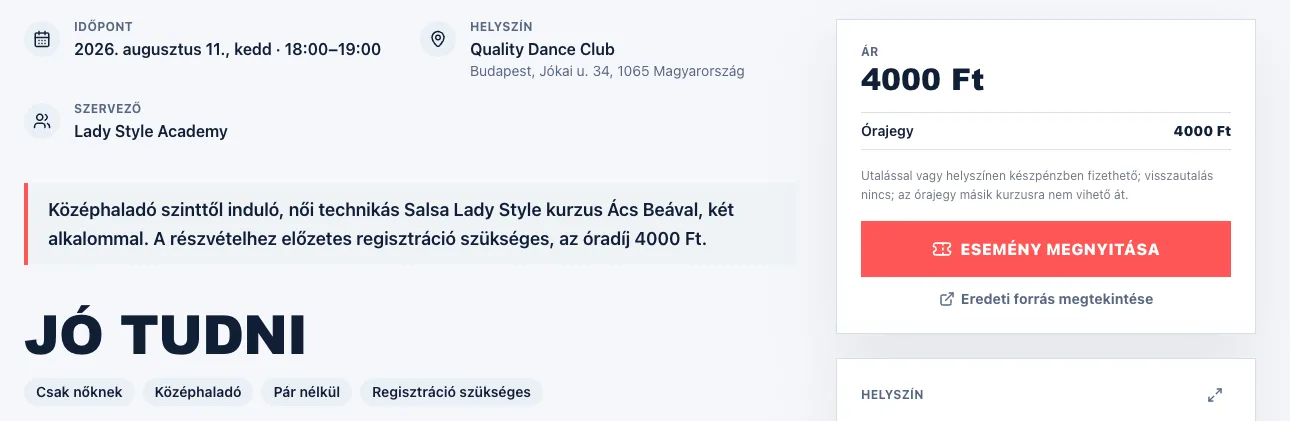
- The details block holds the date, the venue, the price and the organizer in one place.
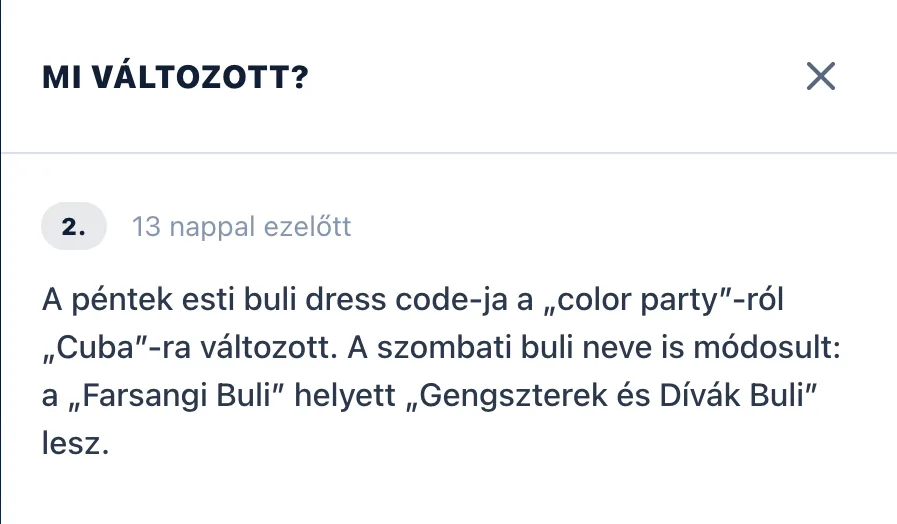
- If the organizer has changed something, "What changed?" shows you what.
What do the labels mean?
The pills above the title are the quickest summary of an event:
- Status: "Upcoming", "Starting soon", "Happening now", "Past" or "Cancelled" — cancelled events deliberately do not disappear, so that you know why it is not happening.
- Type: "Party", "Class", "Workshop", "Festival", "Competition" or "Performance". "Camp" (an uninterrupted multi-day programme), "With workshop" (there is a workshop alongside the programme) and the rhythm — "Weekly", "Every two weeks" or "Daily" — if the programme is a series of meetings can come next to it. For those, the list shows the NEXT meeting.
- Who it is for: this only shows up when the event is limited by dance role — "Followers only" or "Leaders only".
- Discount: „LD −20%" (percentage) or „LD −1,500 Ft" (fixed amount) — the organizer gives Let's Dance users a discount. In the list it sits in the top-right corner of the card; on the event page it is among the header labels, and the price is struck through next to the discounted amount. The condition is in the price box.
Under the title come the dance style pills, and under those, the buttons.

Buttons: saving, calendar, sharing, directions
"Interested" and "Going" say how sure you are about turning up, and "Add to favourites" simply puts the event aside for later — these need you to be logged in. "Add to calendar" puts the date in your own calendar. Under "Share", "Copy link" puts the address on your clipboard, with Facebook and X sharing next to it. In the venue box, "Open in Google Maps" takes you to the map — on a phone the same thing is called "Directions", and it follows you as you scroll in a floating bar together with sharing, the heart and "Going".
On a cancelled event, "Interested", "Going" and "Add to calendar" do not show up — the favourite heart stays.
The summary, the date, the venue and the price
At the top you find a short summary of the event — a few sentences on what it actually is. Under it, the details block holds the date, the venue (with its address), the price, the organizer and — on a recurring event — how often it repeats. The price box shows the ticket types next to the price, if there is more than one.
Let's Dance discount
At some events the organizer gives a discount to people who arrive through Let's Dance. Those carry a green label in the top-right corner of the card with the size of the discount — „LD −20%" for a percentage, „LD −1,500 Ft" for a fixed amount — and the price is shown struck through with the discounted amount — in the list, in the calendar and on the event page alike.
The condition is simple: sign up for the event with the same e-mail address you registered with on Let's Dance — that is how the organizer identifies you. The discount comes from the organizer, so its terms are theirs to set.
"What changed?"
If the organizer has changed something, a bar appears above the details with the time of the last update and the "What changed?" button. Click it and you can look back at when and exactly what was changed — the date, the venue or the price, for example. Every change comes with a short summary sentence, and the old and the new value under it.
A recurring event: more dates
If the event comes back regularly, the "More dates" row of dates appears under the title. Click another date and you jump to the next occasion of the same series — no need to go back to the list.
The row always starts with the occasion you are looking at. Occasions that have already happened do not disappear either: they sit before it in a paler colour, you just have to scroll the row to the left. Click one and you can see what was on that day.

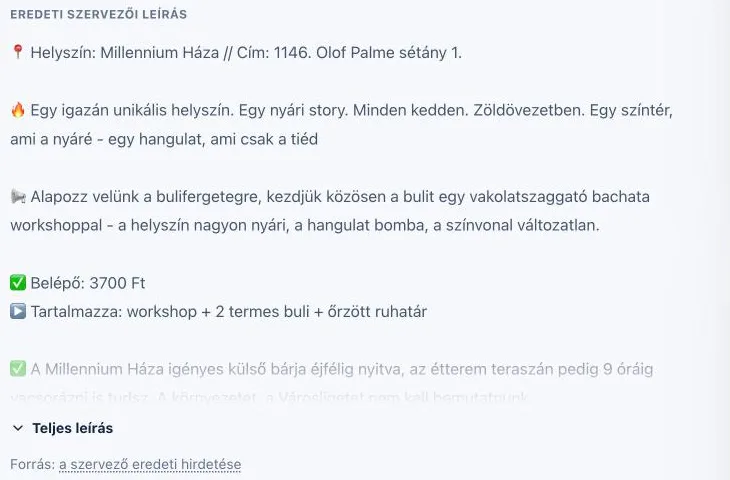
The organizer's description
At the bottom of the page you find the organizer's own text, under the heading "Organizer's description". On a long description only the beginning is visible — the "Full description" button unfolds the rest, and "Show less" folds it back.
Organizers often write the same thing in several languages, one after the other. In that case we show you only one of those versions in your own language, so you do not have to read the same thing twice. If the text does not exist in your language, we translate it. A line ABOVE the description always says what you are reading: the original, the organizer's own wording in this language, or a machine translation. The "Show the original text" button always brings up the organizer's full, untouched wording, and "Show the translation" switches back.
Under the text, the "the organizer's original listing" link takes you to where the event came from.
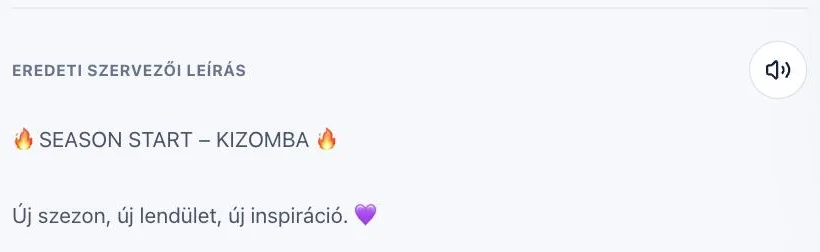
Listening to the description
There is a speaker button above the description. Press it and we read the organizer’s text aloud, so you can hear what the event is about while driving or getting ready. The ring around the button shows where you are; press it again to pause.
The first time it takes a few seconds to start — that is when we create the audio. After that it starts instantly. The narration is in Hungarian, so the button only appears where there is Hungarian text, and only until a week after the event.
Links in the description and similar events
If the description points at another event from this site, you see it as a highlighted link: one click and you are there. And at the bottom of the page — if we find any — the "Similar events" block suggests a few related programmes, in case this one is not quite it.