
Views: list, calendar, map
List, month and week calendar or map — when each one is the more useful.
- Four views above the list: List · Month · Week · Map.
- Click a day in the calendar or a marker on the map and the full list for that day or venue opens.
- Your filters apply in every view, and the view you pick is remembered.
List
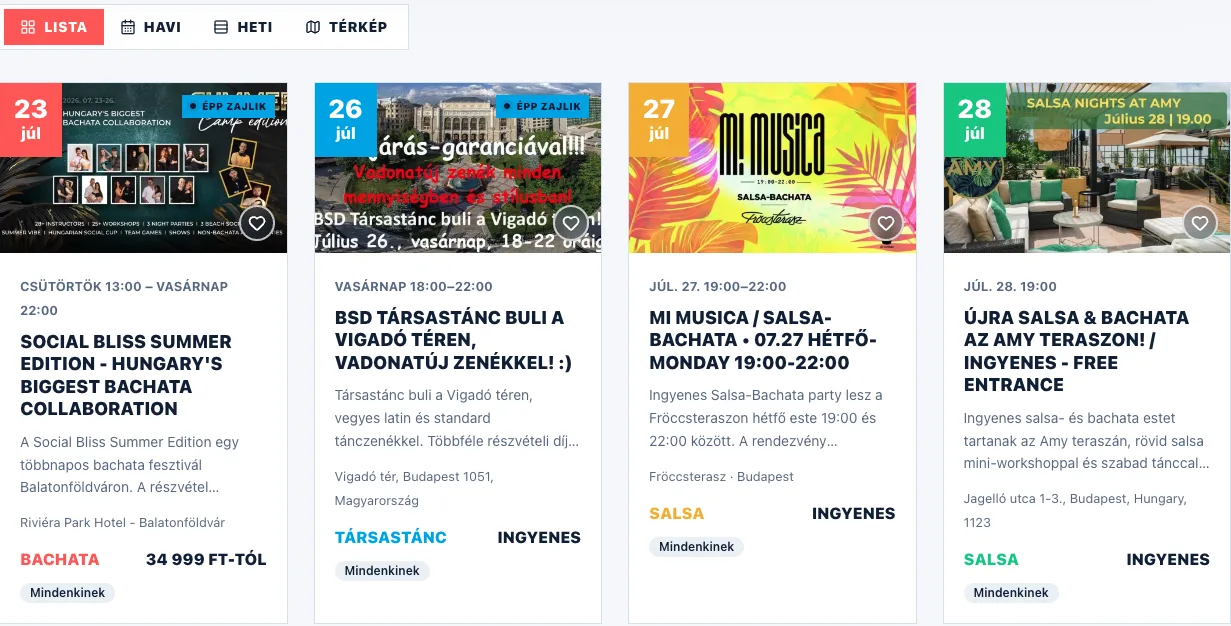
This is the default view: events in date order, one after another, with paging — featured events at the front. If you are just browsing, this is the quickest — the card shows the date, the venue, the dance style and the level too.
Month and week calendar
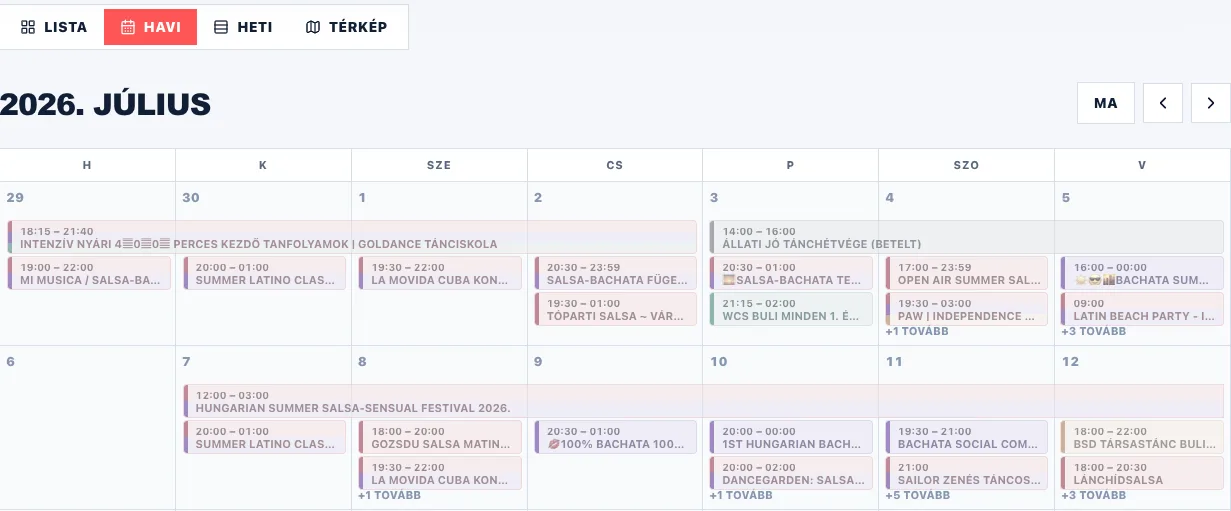
If your question is more like what is on this Saturday, switch to the Month or the Week view. The arrows next to the heading step back and forth, and the "Today" button jumps back to today — the ← and → keys work just as well as the arrows. Multi-day programmes — camps, festivals — stretch across the days they cover as a single bar. A weekly course does not: each of its meetings sits on its own day, and the days in between stay empty.
The two views look the same; Week is just one row of it: the current week, where every programme fits. Every day header shows the number of events that day, and a programme also shows its cover image, its time, its title and its venue.
On a phone the Month calendar is tighter: instead of programme names the days hold small coloured dots — one for each event that day (above three, a number shows the rest), and the colour of the dot tells you the dance style. On a phone you swipe sideways through the days of the Week view; it opens on today.
Clicking a day
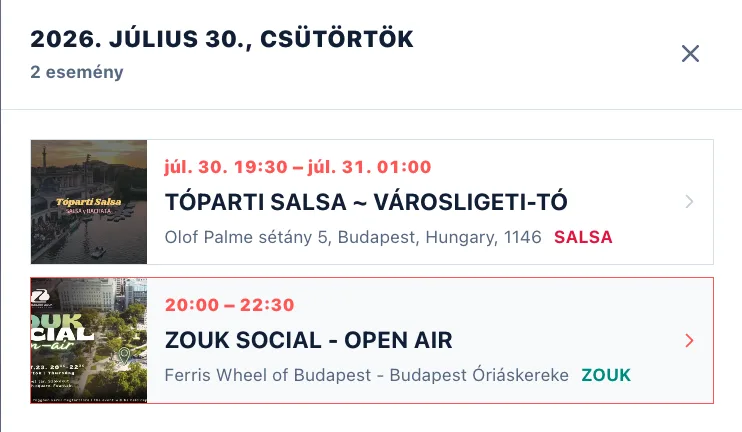
Only a few programmes fit into one day of the month calendar; "+N more" stands for the rest (there is no such thing in the week view: everything is visible there). Click the day — or that label — and the full list for that day opens in date order. On a phone this does not come up in a separate window: the list for the day you picked appears right under the calendar, so you see the calendar and the programmes at once. Click an event for a quick preview, and if that looks interesting too, "Open details" takes you to the event page.
Map
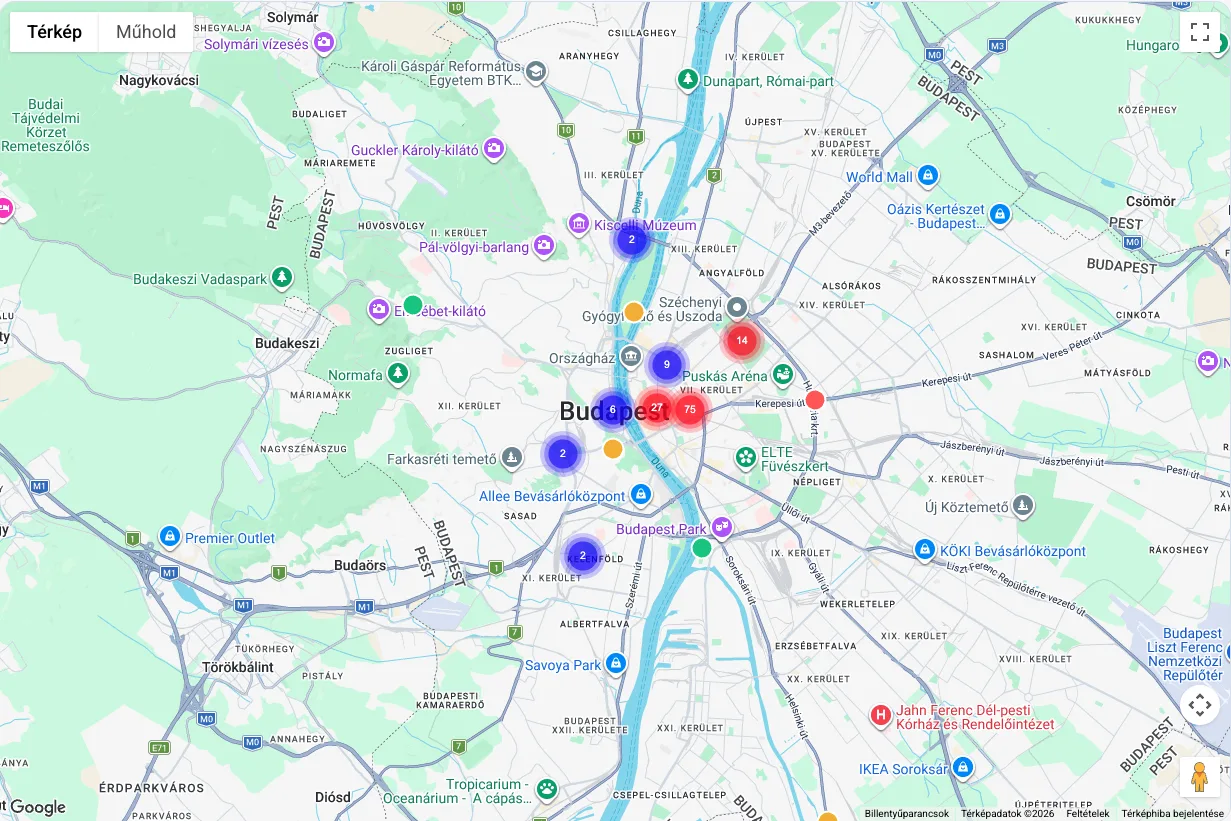
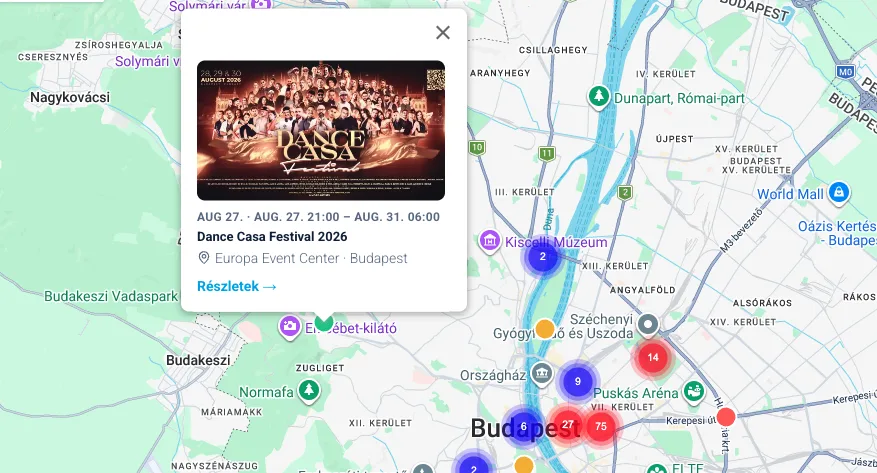
In Map view every event that matches your filters is visible at once — there is no paging here. One marker means one venue: if there is more than one programme there, the marker is square and the number on it tells you how many events are at that place. Zoom out and venues close to each other gather into dark, numbered circles; click one and the map moves closer and the group opens up. Anything without an exact address (an online session, for example) is not on the map — you will find that in List view.
Clicking a marker
Click a marker and the full list for that venue opens — the same window you get by clicking a day in the calendar. The events are in date order inside it even when the same programme repeats every week: every occasion is its own row. Click a row for a quick preview, and one button from there takes you on to the event page. The window closes when you click the background or press Esc.
Featured events
Some events show up on a dark card, with a light streak running across it and a "Featured" badge. We pick these by hand, and they come first in all three views: at the front of the page in the list — where they get a wider card too —, at the top of their day in the calendar, and with a pulsing marker on the map. It does not override your filters either: if you filter for bachata, a featured event can only be bachata.
The view is remembered, the filters stay
This browser remembers the view you picked, so you do not have to switch every time — on another device, though, List greets you again. And your filters apply the same way in every view: if you ticked bachata and Budapest, the calendar and the map show only those too.