
- You can move your dance school membership card into the Wallet app on your phone.
- Three steps: dance school → name and card number → Apple Wallet or Google Wallet.
- No account needed — the 13-digit number of your plastic card, though, is.
What is a digital pass?
On the Digital pass page you can make a digital copy of your dance school membership card, and then keep it in the wallet app on your phone. The card carries over your name and the same barcode that is on your plastic card — so you do not have to carry that around.
You find the page in the header menu: on a computer under "More", on a phone directly in the menu. You do not have to log in for it; the pass is made without an account too.
For now the pass of one single dance school can be picked, that of Goldance Tánciskola — if yours is not on the list, you cannot make a card yet.
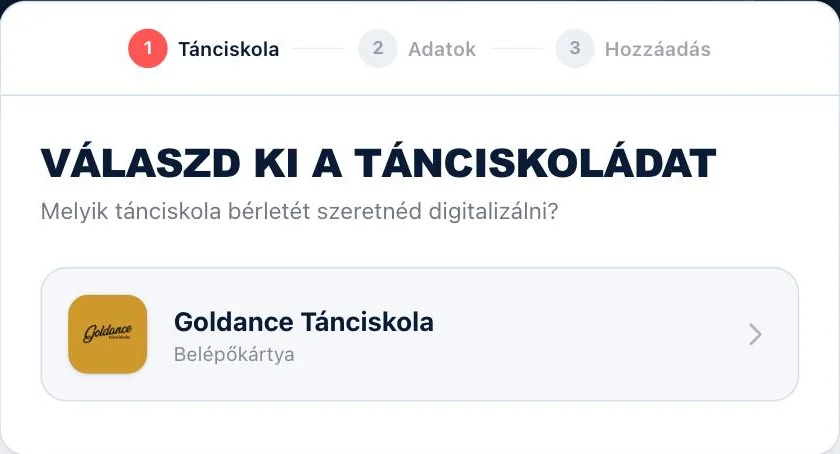
Three steps
- 1Pick your dance school. Click its row and the wizard moves on.
- 2Give your name and card number. The card number is the 13 digits under the barcode of your plastic card. You can type it in, or tap the camera icon at the end of the field and scan the barcode. While the number is incomplete or wrong, the "Next" button stays grey. The picture of the card above it shows you live what goes on the pass.
- 3Put it in your wallet. In the last step, tick the consent — without it the two buttons are inactive — then pick the Add to Apple Wallet or the Add to Google Wallet button.
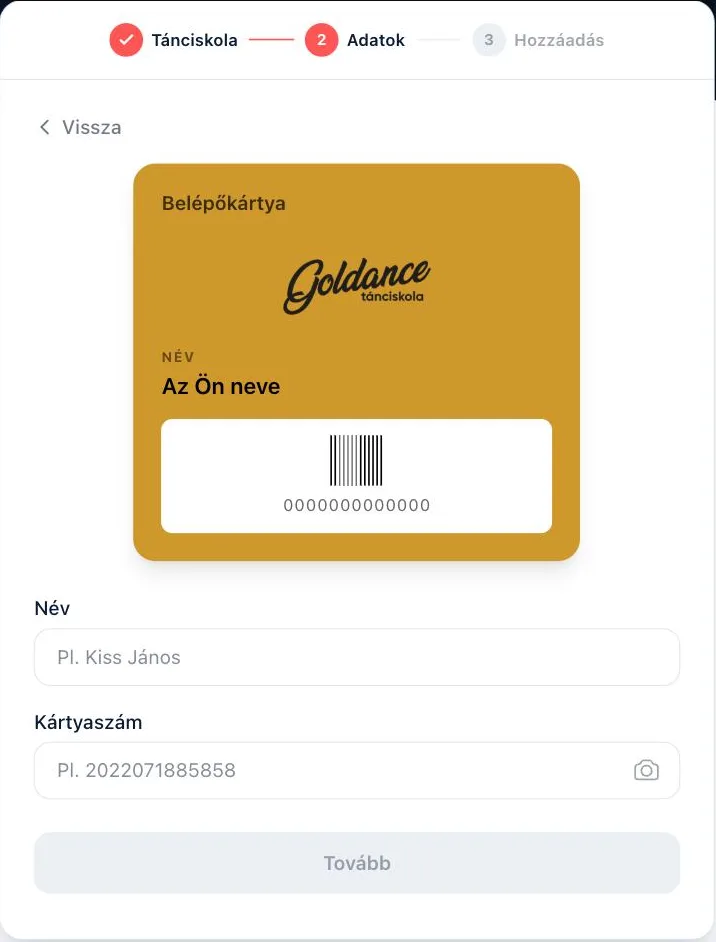
The pass ends up where you make it, so it is worth starting on your phone right away: Apple Wallet and Google Wallet are both to hand there, and scanning the barcode with the camera only makes sense there. A card made on your computer does not move over to your phone by itself.