- Seven switches decide what we tell you about — all on the My account → Notifications page.
- Push notifications have to be turned on separately on every device: on the phone and on the computer.
- On an iPhone it only works if you put the site on your home screen first.
What we tell you about
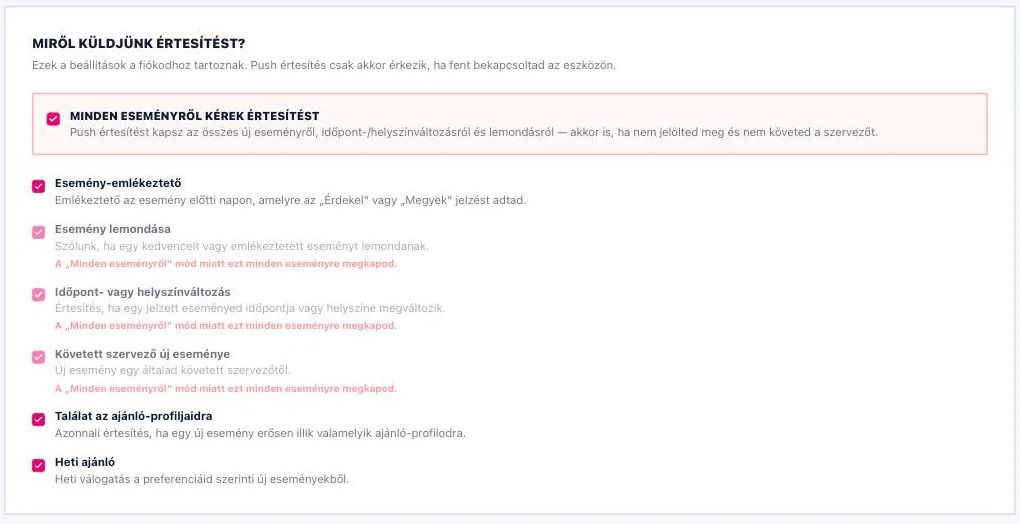
On the My account → Notifications page, under the heading "What should we notify you about?", you will find seven switches. They are all on by default, and whatever you change is saved straight away:
- Event reminder — one morning letter about everything you marked "Interested" or "Going" that starts soon.
- Event cancelled — if an event you saved or marked is not happening.
- Date or venue change — if an event you marked is happening at another time or in another place.
- New event from an organizer you follow — as soon as they announce it.
- Matches for your recommendation profiles — if a new event fits what you set up really well.
- Weekly picks — a weekly selection of events for you.
- Carpool — bookings on your lift, cancellations, seat changes, and lifts posted to an event you asked about.
The reminder, the cancellation and the change go out by email as well — you do not have to switch anything on for that. Carpool notifications also come by e-mail. The other three (organizer you follow, profile match, weekly picks) only arrive as push notifications: if push is not on, there is no way for these to reach you. Which mark starts what is described in the Favorites, "Going", following article.
The "Notify me about every event" switch
There is a separate box above the seven switches. Turn it on and we tell you about every new event, date and venue change and cancellation — even if you did not mark the event and do not follow the organizer.
While it is on, the switches for the cancellation, the change and the organizer you follow go grey — you get those for every event anyway. The reminder, the profile match and the weekly picks, though, still depend on their own switch: if you turned those off earlier, this mode will not start them again. It comes with a lot of messages, so if it gets to be too much, turn it off — the other switches then go back to where you left them.
Push has to be turned on device by device
At the top of the page, under "Push notifications", there is one button: "Turn push on". Once you press it, the browser asks whether you allow notifications — say yes here. Next to the button you see the state: "Turned on for this device.", and the label switches to "Turn push off".
The subscription lives on each device separately: if you turned it on on your laptop, you have to do it again on your phone. Until it is on for this device, the seven switches cannot be set either.
If you blocked notifications earlier, the button will not help: you have to allow them again in your browser's site settings first.

The bell: look back at what we told you
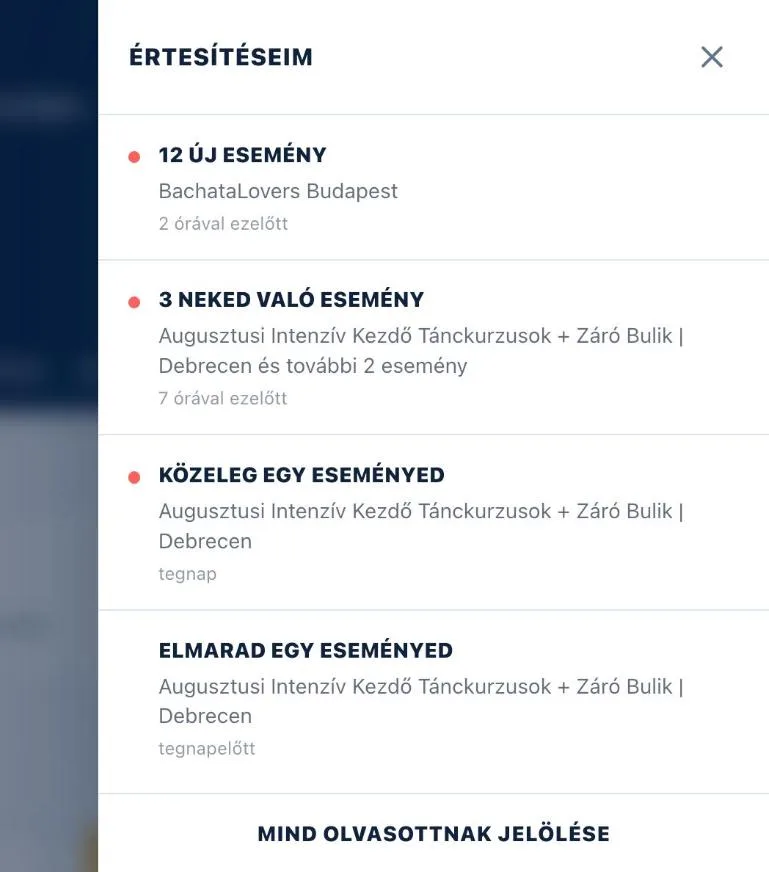
In the header of the site, next to your account icon, there is a bell. If you have unread notifications, a number on it says how many. Click it and the "My notifications" panel slides in from the side, with the notifications sent to you — with the same title and text the notification had. Unread ones are marked with a red dot, and the "Mark all as read" button at the bottom of the panel clears the marks all at once.
The bell shows the ones we sent as push notifications — so you can find them even if your phone was muted, or you just tapped the notification away.
If a notification is about several events — "12 new events", for example — opening it gives you exactly those 12 events in a list, not the whole listing. A notification about a single event takes you straight to that event's page.