
- If you drive to an event, you can offer your free seats on its page.
- A booking is instant: the seat is taken right away, the driver does not have to approve it.
- You see each other’s contact details after the booking — from there you sort it out by phone.
What this is for
Plenty of dancers set off alone in a big car for a festival in the countryside, while someone else cannot get to the same place at all. Carpooling brings those two people together: you say where you set off from and how many seats you have, and the others find it.
Let’s Dance takes no part in the journey: we neither organise nor broker transport. What we help with is finding each other — the rest is between you.
If you are the one driving
First tell us how people can reach you. You do that in your account under Carpool → My contact details and car. A phone number is required — a lift is settled on the morning of the trip, and if something slips a message will not get there in time. Alongside it you can add Messenger, Facebook, Instagram or email. This is also where you add your car (make, model, year, colour) so passengers know which one to look for at the meeting point. You can keep one car on file, and every listing goes with that one — there is nothing to pick.
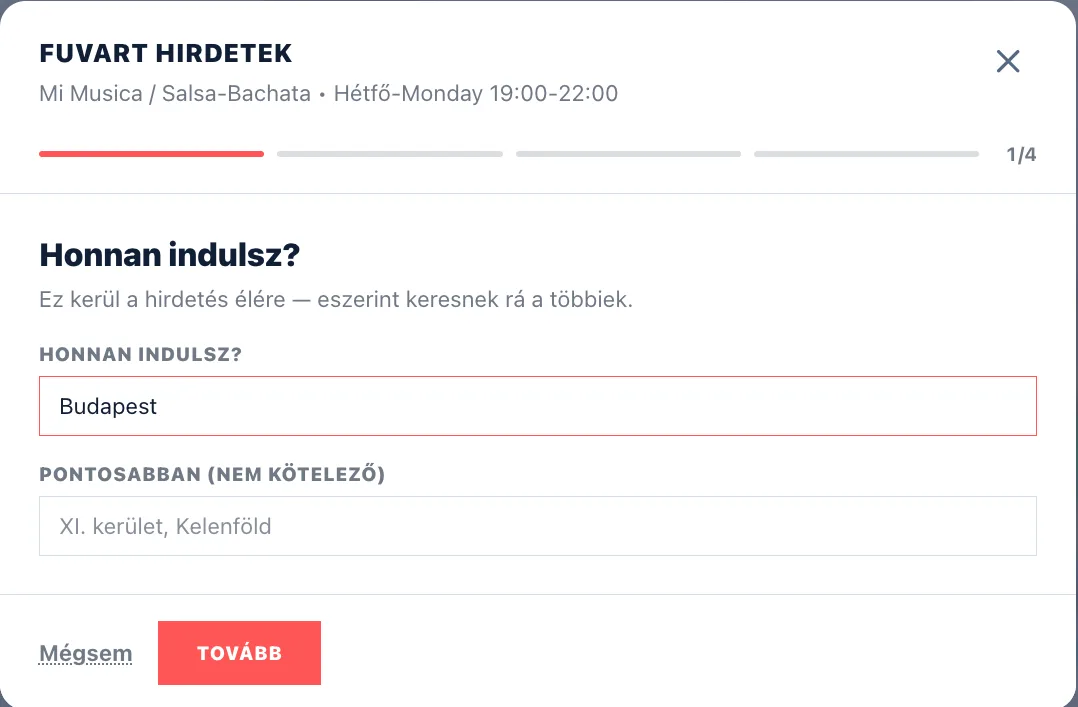
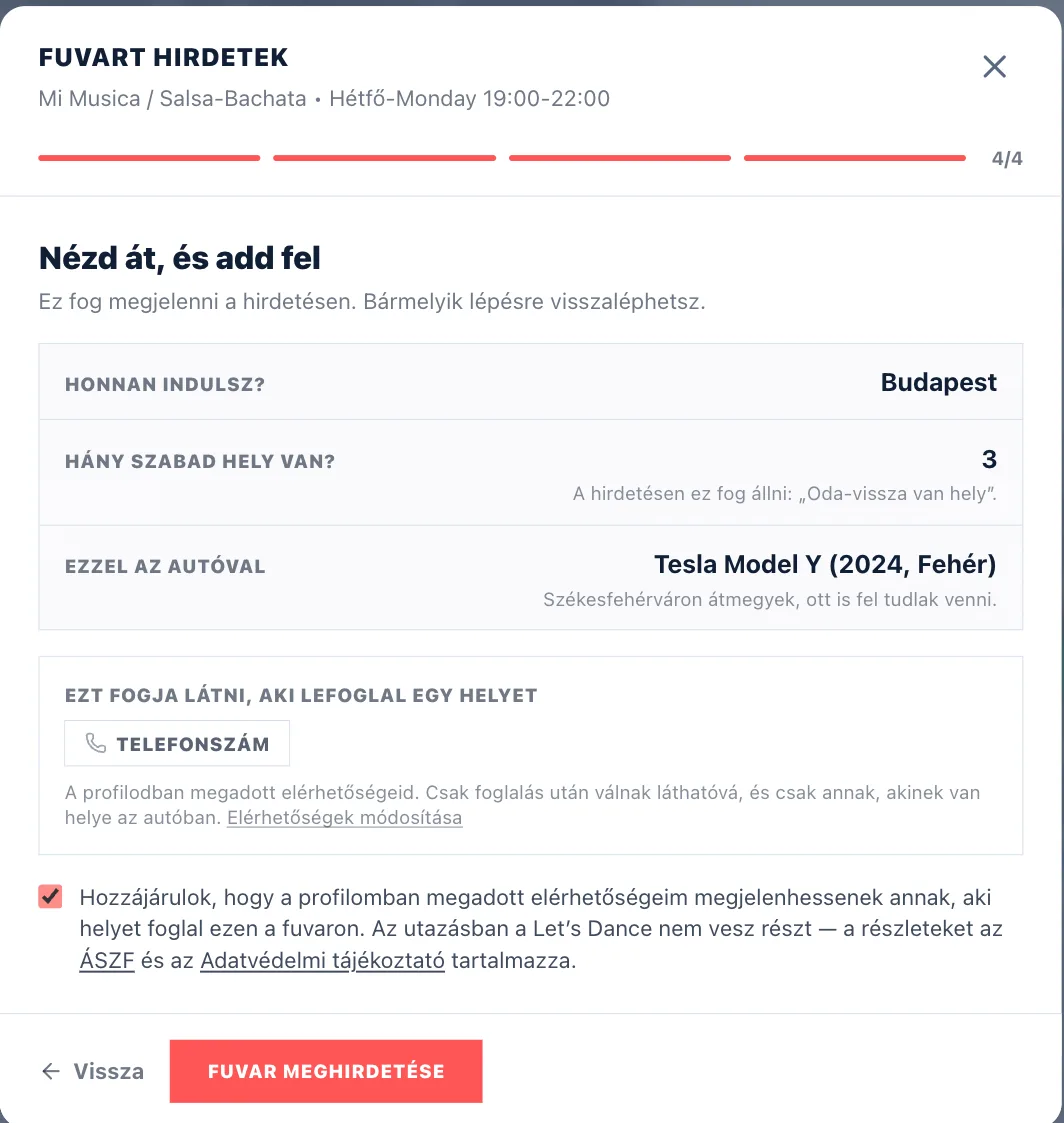
Then open the page of the event you are going to, scroll to the Carpool section and press Offer a lift. A window opens and asks four short questions: where you set off from, how much room you have (and whether there is room on the way back), a note about the route, and finally a summary. Nothing is final along the way — you can step back at any point. You do not pick a contact detail: the last step shows you that whoever books a seat will see the contact details from your profile. If you have not added a phone number yet, the Add a phone number button stands where Offer a lift would be — one click takes you to the settings.
You can type the departure point freely. As you type we suggest the common towns, but you are not tied to them: a small village or a city abroad works just as well.
When you list a lift, the event is automatically marked Going for you — if you are offering a lift, you are obviously going to be there.
If you are looking for a lift
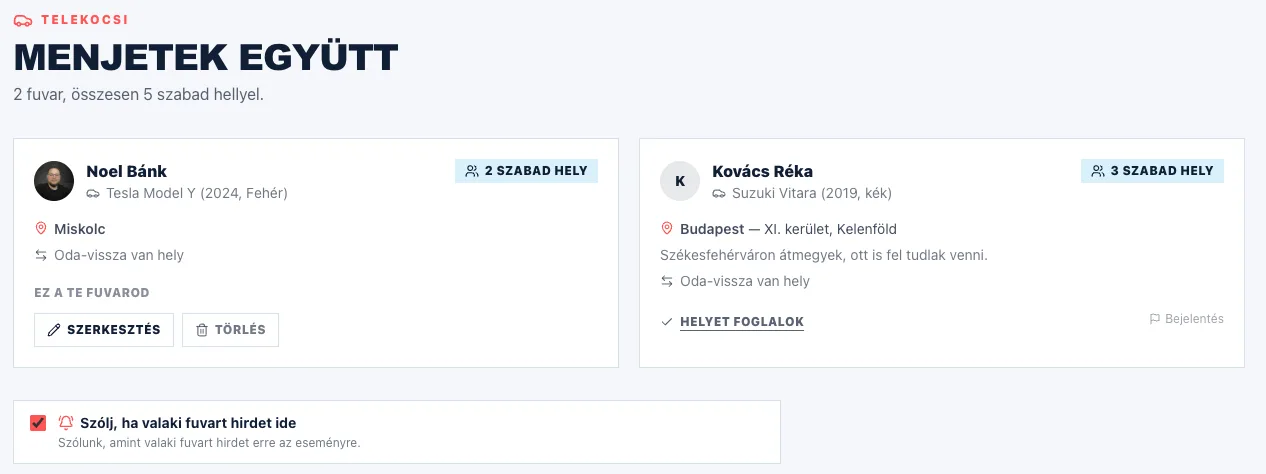
In the Carpool section of the event page you can see who is driving, where they set off from, in what car, and how many seats are left. Lifts with free seats come first and the Full ones last, dimmed — except the one you booked a seat on: that stays at the top and is never dimmed, because it is your lift. It also says Room there and back or One way only — with the latter you have to sort out the way home yourself. Press Show contact detail and, after a short automatic check, you will see how to reach them.
You need to be logged in for that. It is not a formality: it keeps a script from harvesting dancers’ phone numbers.
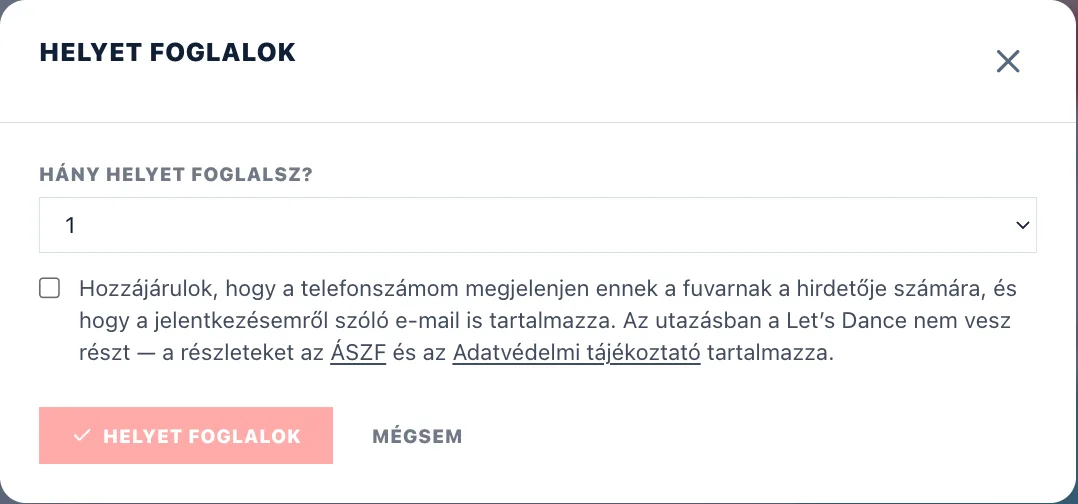
If the lift suits you, press Book a seat — a window opens: pick how many seats you need (one by default) and tick the consent box. A short automatic check runs before it is sent, which is what stops a bot from filling up the cars. The booking is instant — the seat is taken right away — and from then on you can see each other’s phone number. You need a number in your account for this. The driver gets a notification about your booking, with your number in it.
If it turns out fewer (or more) of you are coming, you do not have to cancel: Change the seats rewrites the number of booked seats and the driver gets an e-mail about it. If you cannot make it at all, press I am not coming after all. The driver is notified straight away and your seat goes back on the listing — which is why saying so matters. In return you cannot book that lift again for 24 hours, and you can back out twice in total; after that the lift is closed for you. If the driver calls off your seat, you cannot book it again either — only they can undo that. After a cancellation the contact details close in both directions.
You do not have to keep an eye on the page. When you mark Interested or Going on an event, we ask whether we should tell you once someone offers a lift there — most lifts are posted in the days before the event, when most people have long stopped checking back. You can change your answer any time with the switch in the Carpool section.
Every lift in one place
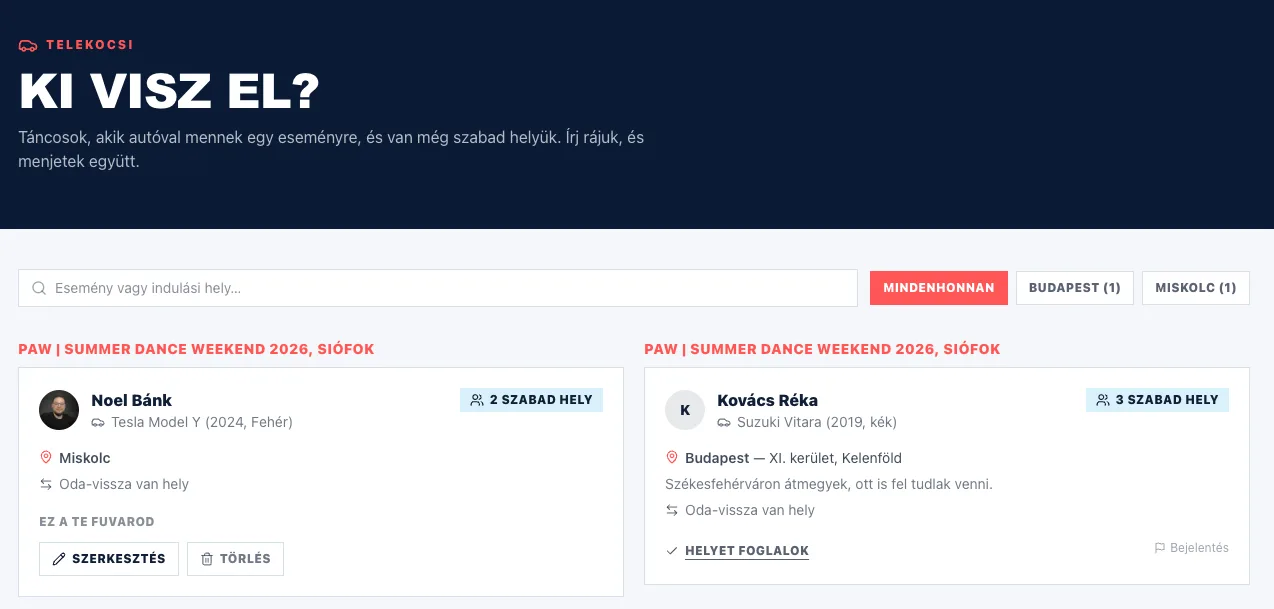
If you are not looking at one particular event but simply want to know whether anyone is driving your way this weekend, open the Carpool page. You reach it from the "More" menu at the top, under "Carpool". Every current lift is listed there, filterable by departure city.
You can see it in the event list too: where a seat has been offered, the card shows how many free seats there are by car.
Managing your own lifts
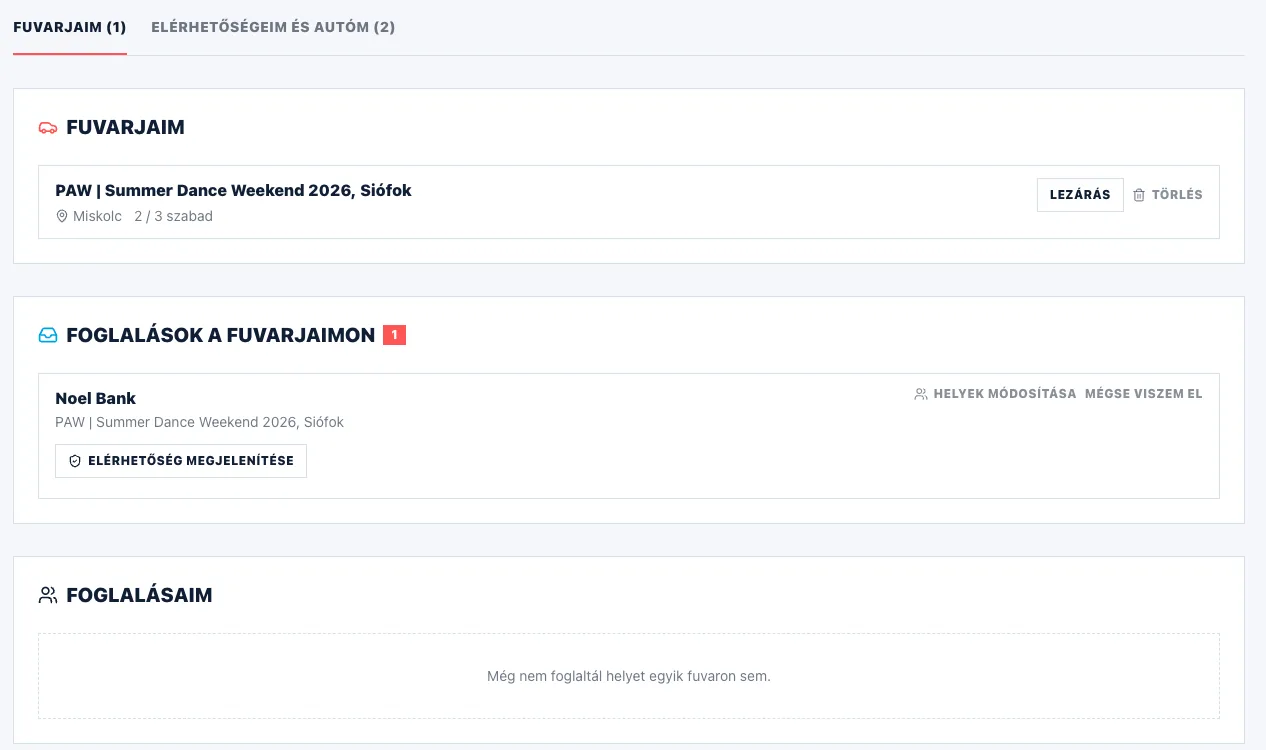
The Carpool → My lifts page shows three things at once: the lifts you have listed, the signals they received, and the lifts you have signed up for.
The Bookings on my lifts block shows who booked with you and how many seats. There is nothing to approve: bookings are instant. With Change the seats you can adjust the number afterwards if you can only take fewer — the passenger gets an e-mail about it. Every booking has a Show contact details button that brings up the passenger’s phone number after a short automatic check. If a seat filled up with someone who did not find you through the site, open the lift for editing and lower the How many free seats do you have? number.
Close takes the listing down temporarily, Delete removes it for good. Deleting asks you to confirm first, and everyone who already signed up gets a notification about it, so they have time to find another way.
If you cannot take someone after all, call it off with I cannot take them after all: they are notified and the seat is freed. This is final for the passenger, who can no longer book that lift — if you change your mind, Take them along after all undoes it (as long as nobody else has taken the seat meanwhile) — that asks you to confirm too, and the passenger is notified about it as well. When a passenger backs out, you are the one who gets notified.
You can only be in one place at once: if you already listed a lift or booked a seat for a given time, you cannot take another one for an overlapping event. Two programmes on the same day that do not overlap in time are fine.
If something is off
Every lift has a Report button at the bottom. If a listing is spam, offensive or false, let us know — an editor will look at it. Reporting does not make the listing disappear straight away: a person decides, so that a single misunderstanding cannot take away a genuine lift.